
Plan the week. Print it on one page.
Darzen Teacher Desk is a lesson planner, an attendance book and a gradebook in one place. Periods down the side, days across, the objective, activity, materials and homework in every cell — and a weekly page that fits on one sheet of paper, portrait or landscape, even at seven full periods across five days.
- The App, Google Sheets and Excel in one purchase
- A week on one printed page, verified at seven periods across five days
- Weighted gradebook with a current grade that is right in week three
- One price, free updates, nothing stops working next year
Login emailed right after checkout · One-time payment · Free updates

The real app with a made-up science teacher. Your copy starts empty.
Works on the devices you already use, and keeps working
- The AppAny modern browser, works offline
- Google SheetsFree Google account
- Excel2010 or later, Windows and Mac
- Phone and tabletThe App and Sheets on the go
Every screen. Watch them change hands.
These are the real screens, cycling. Tap any one to hold it.


What's inside
Real screens. No mock-ups.
Every picture is the actual product with a sample class list. Tap any screen to see it full size.
Why it works
Built for the week in front of you.
-
Three editions, one price
Use the App on your laptop and phone, keep the Google Sheet in your Drive, or open the Excel file. All three come with every purchase, and none of them expire.
-
A week that actually prints
Periods down the side, days across, with the objective, the activity, the materials and the homework in every cell. The page is set to one sheet of Letter paper, and it still lands on one page in portrait.
-
A grade that is right in week three
Each category is scored on its own, then weighted by the share you set. Categories with nothing graded yet are left out instead of dragging the grade down, so the number on the screen is the number today.
-
Codes and scales you set yourself
Grading scales and attendance codes differ by school and district. Rename the codes, choose which ones count as in class, and set the letter cutoffs to the scale you report on.
-
A watch list you decide
Set your own absence limit and the app lists the students who have passed it, class by class, with their absent, excused and tardy counts.
-
A roster that holds very little
A first name, an optional last initial, an optional student ID, the class and the academic record you type in. There is nowhere to put a birth date, an address, a phone number, a guardian contact or a medical note.
Everything in Teacher Desk
One desk. The whole teaching week.
-
The App1
This Week: the plan you print
Click any period to write the objective, the activity, the materials and the homework. The next class sits beside the grid with a countdown, and anything still blank is listed under Still to plan.
- Seven periods, five days
- Prints on one page
- Next class countdown
- Week as a calendar file
-
The App2
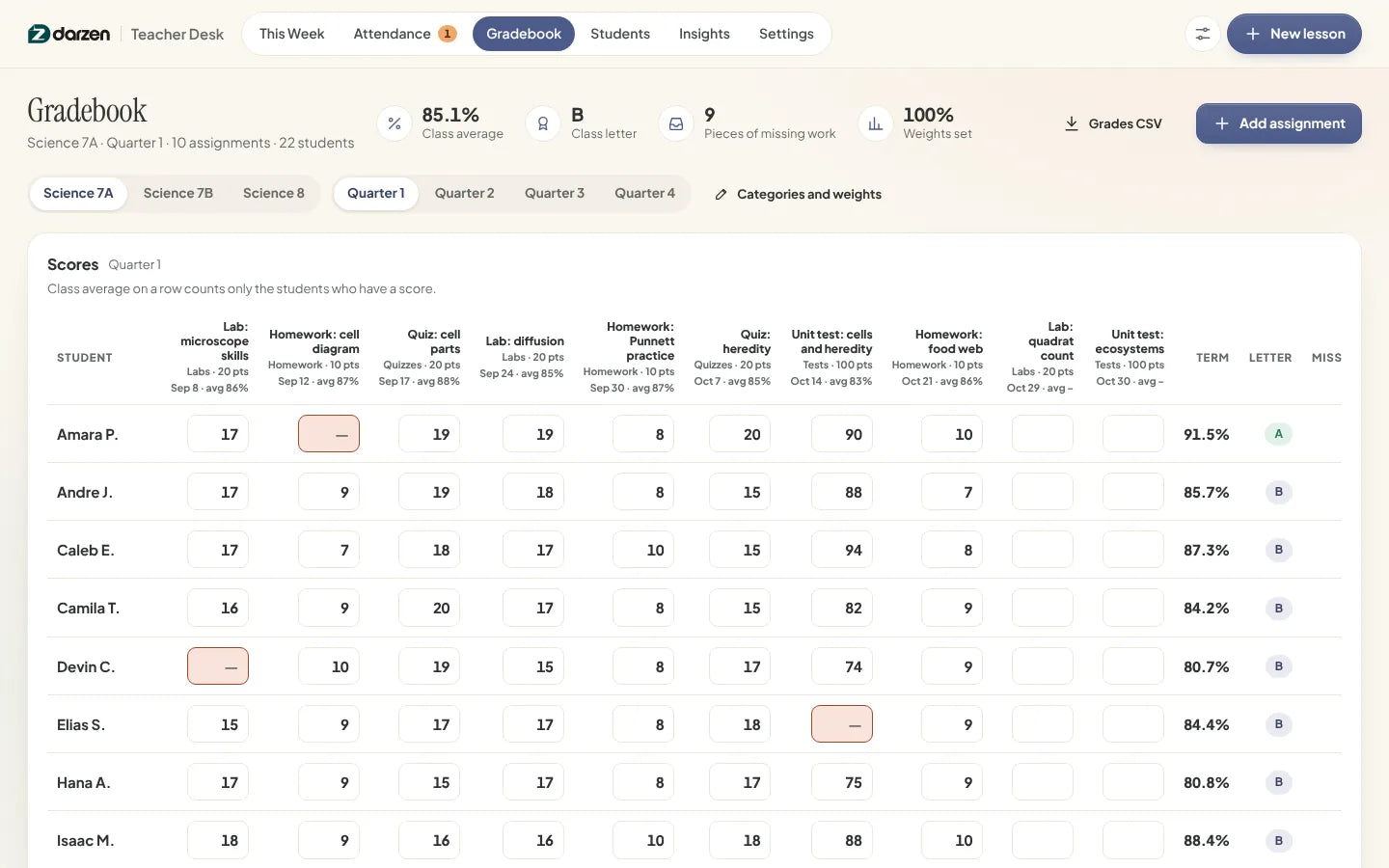
Gradebook: weighted, and current
Name the work, give it a category, points and a date, then type scores. An empty cell is missing work and stays out of the grade until you fill it in; type 0 for a zero or EX to excuse a student from that piece.
- Weighted categories
- Class average per assignment
- Letter from your own scale
- Missing-work list
-
The App3
Attendance: the roll, then the totals
Four codes a tap apart, by class and date. Per-student totals, a class rate that counts tardy students as in the room, and a watch list for anyone past your own absence limit.
- Editable codes
- Per-student totals
- Class rate
- Your own absence limit
-
The App4
Students: one page per student
A roster per class, a seating chart you can drag, and a page that pulls a student's grade by category, their attendance and their missing work together — printable on its own for a parent conversation.
- Grades, attendance, missing work
- Printable student page
- Seating chart
- First name and last initial
-
The App5
Insights: what your own records add up to
Attendance by week against a line you can see, class average per assignment, the spread of letters, days out by weekday and a chart that puts attendance against grade so the students who need a second look stand out.
- Attendance by week
- Class averages
- Letter spread
- Attendance against grade
-
Google Sheets and Excel6
Google Sheets and Excel
The same desk as a workbook: Dashboard, Lesson Plans, Lesson Log, Attendance, Gradebook and Students. Yellow cells are where you type; everything else updates itself, and the Lesson Plans tab prints a week on one page.
- Excel 2010 or later
- No macros
- Example and blank copies
- Prints neatly
Try it first
Click around. Then decide.
Open the real app with a made-up science teacher and try everything. Nothing you type is saved.
Things to try
- Open a period and write a lesson, then print the week
- Take the roll on Attendance and watch the rate move
- Type a score in the Gradebook and see the letter change
- Open a student to see grades, attendance and missing work together


Google Sheets and Excel share the same tabs and formulas. Shown with the example classes; your copy starts blank.
How it works
From checkout to a printed week in one sitting.
-
Check out securely
Pay on Shopify's secure checkout. You see the full price, with any tax, before you pay.
-
Get your login
Your Darzen username and password arrive by email right after payment.
-
Open your editions
Open the App on up to two devices, copy the Google Sheet to your Drive, or download the Excel file.
-
Set up one class
Add a class, its period, the days it meets and its grade categories. Write Monday's lesson and print the week.
One price
Everything on this page. One payment.
No subscription and no upsells. Updates are free for every buyer, and nothing stops working when the school year ends.
- The Teacher Desk App, works offline on two devices
- Google Sheets edition, your own copy in Drive
- Excel edition, blank copy and example copy
- Weekly lesson planner that prints on one page
- Attendance with editable codes and a watch list
- Weighted gradebook, editable scale and a per-student page
- Free updates for every buyer
Secure checkout by Shopify. Your Darzen login is emailed right after payment. Refund policy
Not sure yet? Try the live demo first
A few good answers
Questions, answered.
Delivery, devices, updates and your data. Still curious? We reply to every email.
Ask us a questionHow do I get my files?
Right after checkout we email you a Darzen username and password. Sign in to your Darzen account to download the App and the Excel files, and to make your own copy of the Google Sheets edition.
Which edition should I use?
All three come with every purchase, so you do not have to choose. The App feels like software and works offline, Google Sheets lives in your Google account, and Excel is a file you keep.
Which version of Excel do I need?
Excel 2010 or later on Windows and Mac, or Excel for the web. The workbook has no macros.
Does the App need the internet?
Only once, to sign in with the login we email you. After that it opens from the file on your device and works offline.
Where is my students' information kept?
In the browser on your own device, or in the spreadsheet file you keep. Nothing is sent to us and the tool connects to no school system. The roster holds a first name, an optional last initial, an optional student ID, the class and the academic record you type in, and there is nowhere to put a birth date, an address, a phone number, a guardian contact or a medical note. It is your own working copy, not an official record, and it does not replace your school's system of record — follow your school's own rules about where student information may be kept.
Will it match my school's grading scale?
You set the scale. The letters and their lowest percents are a table you edit, so A–F, plus-and-minus, or any cutoffs your school reports on all work. Attendance codes are the same: rename them to the words your school uses and choose which ones count as being in class.
Can I back up my data?
Yes. In the App, save a backup file in one click and restore it on any device or browser. The Excel and Google Sheets editions are files, so copy them wherever your school allows.
Does it work on my phone?
The App works in your phone's browser and the Google Sheets edition works in the Sheets app. Sign in on up to two devices.
How do updates work?
Updates are free. When a new version is ready, it appears in your Darzen account and the App tells you.
Can I get a refund?
See our refund policy, linked next to the price. Try the live demo first so you know exactly what you are getting.
One app. One Google Sheet. One Excel workbook.


